The Samsung Galaxy S26 Ultra is Samsung’s most powerful smartphone to date, packed with cutting-edge features like Galaxy AI 3.0, an advanced S Pen, Privacy Display, and Call Screening with AI Assistant. That’s exactly why you need a proper Samsung Galaxy S26 Ultra user guide for beginners.
The official manual covers everything from basic navigation to professional-grade camera settings, S Pen Air Actions, and Knox security features. Without it, you’ll likely miss 70% of what makes this $1,300+ flagship special.
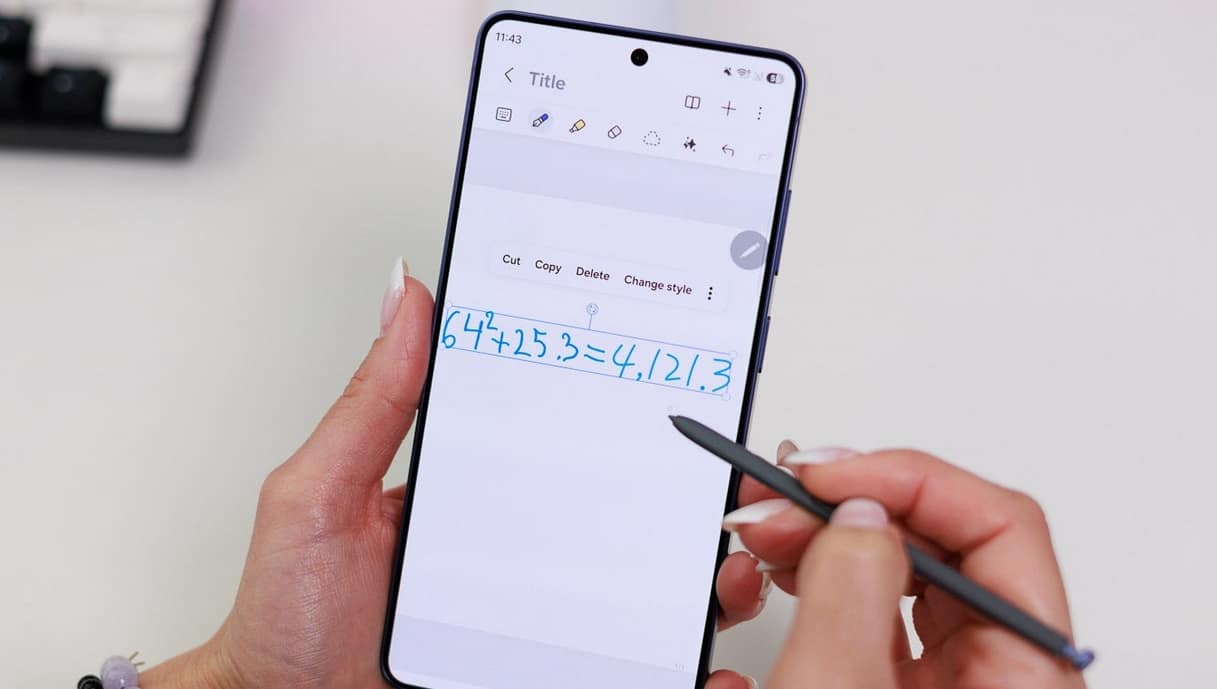
According to Samsung’s official support documentation, the S26 Ultra introduces exclusive features like Now Nudge, Notification Highlights, and AI Select that don’t exist on previous models. These aren’t just gimmicks—they’re productivity tools designed to save you hours every week. But you need to know where to find them and how to activate them.
How to Download the Official S26 Ultra Manual (Free)
Samsung provides the Galaxy S26 Ultra manual as a free PDF download across multiple languages and regions. Here’s how to get it safely from official sources.
Method 1: Download from Samsung’s Official Support Website
The safest and most reliable way to get your manual is directly from Samsung:
- Visit Samsung’s official support page for your region.
- Search for “Galaxy S26 Ultra manual” or enter your model number (SM-S948B/DS for global, SM-S948W for Canada, SM-S9480 for China).
- Select your language from the dropdown menu.
- Click Download to save the PDF to your phone, tablet, or computer.
The official manual is available in 61+ languages including English, Spanish, French, German, Chinese, Japanese, Arabic, and Hindi. Samsung updates these manuals with each software update, so you’ll always have the latest information.
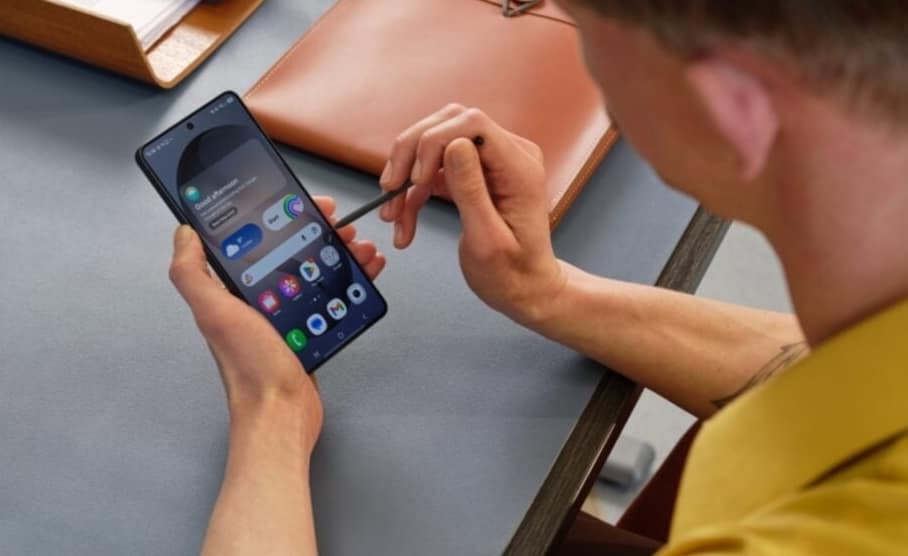
Method 2: Access the Digital User Guide on Your S26 Ultra
Your phone comes with a built-in digital manual:
- Open Settings on your S26 Ultra.
- Scroll down and tap Tips and user guide.
- Browse categories or search for specific topics.
- The guide updates automatically with new features.
This is perfect for quick lookups without downloading anything extra.
Method 3: Use the Samsung Members App
The Samsung Members app (pre-installed) also hosts the official manual:
- Open Samsung Members
- Tap the Support tab at the bottom
- Select User manuals
- Download or read the Galaxy S26 Ultra guide directly
Why Avoid Unofficial Manuals?
Third-party “enhanced” guides often contain outdated information, incorrect settings, or even malicious software. Samsung engineers write and verify every procedure in official manuals. Following unofficial instructions can void your warranty or cause security vulnerabilities—especially when dealing with battery handling, Knox security, or charging procedures.
Pro Tip: Bookmark the PDF on your device for offline access. This saves mobile data and ensures you can reference it anywhere, even without Wi-Fi.
FAQ: Samsung S26 Ultra User Guide
Where can I download the Samsung Galaxy S26 Ultra user guide PDF?
You can download the official PDF from Samsung’s support website by searching for your model number (SM-S948B/DS for global models). The manual is available in 61+ languages and is completely free. You can also access a digital version on your phone via Settings → Tips and user guide.
Is the Samsung S26 Ultra good for beginners?
Yes. While the S26 Ultra is packed with advanced features, Samsung’s One UI 9 is designed to be intuitive. The built-in Tips app provides interactive tutorials, and features like Galaxy AI simplify complex tasks. The S Pen also makes navigation easier for users who prefer precision over touch gestures.
What’s new in the Galaxy S26 Ultra compared to the S25 Ultra?
The S26 Ultra introduces several exclusive features: Privacy Display for screen privacy in public, Now Nudge for AI-powered habit reminders, Call Screening with AI Assistant, Notification Highlights for intelligent notification sorting, and upgraded Galaxy AI 3.0 with Audio Eraser and improved Generative Photo Editing. It also runs Android 17 with One UI 9.
How do I transfer data from my old phone to the S26 Ultra?
Use Samsung Smart Switch, which comes pre-installed. You can transfer via USB cable, Wi-Fi Direct, or PC. The app moves your apps, photos, messages, contacts, settings, and even your home screen layout. For iPhone users, use a USB-C to Lightning cable for the fastest transfer.
Does the S26 Ultra come with a user manual in the box?
Most regions no longer include a printed manual due to environmental initiatives. Instead, you’ll find a quick start card with QR codes linking to the digital manual. The full user guide is accessible on your device or downloadable as a PDF from Samsung’s website.
How do I use the S Pen on the S26 Ultra?
The S Pen is stored in a silo at the bottom of the phone. Pull it out to automatically open Air Command. You can write on the screen, use Air Actions (gestures in the air), take remote photos, translate text by hovering, and convert handwriting to text. Advanced features are in Settings → Advanced features → S Pen.
What is Privacy Display and how do I use it?
Privacy Display is an S26 Ultra exclusive that narrows your screen’s viewing angle. Enable it in Settings → Display → Privacy display. This prevents people sitting next to you from reading your screen—perfect for public transport, cafes, and offices.
How do I optimize battery life on the S26 Ultra?
Enable Adaptive battery in Settings → Battery → Background usage limits, use Dark Mode, lower screen resolution when needed, and enable Power Saving Mode for extended use. The 45W fast charger can charge to 65% in about 30 minutes.
Can I use the S26 Ultra manual offline?
Yes. Download the PDF from Samsung’s support site and save it to your device. You can also access the built-in digital guide offline after the initial download: Settings → Tips and user guide.
What should I do if I lost my S26 Ultra manual?
No problem. The manual is never truly lost. Access it digitally on your phone via Settings → Tips and user guide, or download the PDF from Samsung’s official support website. You can also find it in the Samsung Members app under the Support section.
Final Thoughts: Master Your Galaxy S26 Ultra
The Samsung Galaxy S26 Ultra is an incredibly capable device, but its true power only reveals itself when you know where to look. By downloading the official user guide, following the day-one setup checklist, and exploring the Galaxy AI features covered in this tutorial, you’ll transform from a beginner to a power user in just a few days.
Remember: the best way to learn is by exploring. Don’t be afraid to tap through menus, try new camera modes, and experiment with the S Pen. Samsung’s One UI 9 is forgiving—there’s very little you can break by exploring.
If you ever get stuck, the official Samsung support website, Samsung Members app, and the built-in digital user guide are just a few taps away. Bookmark this guide and return to it as you grow more comfortable with your new flagship.
Ready to become a Galaxy S26 Ultra expert? Download the official manual, change those 15 essential settings, and start exploring everything this incredible phone has to offer.